Protecting against Device Code phishing
Device code phishing is on the rise and normal measures don't seem to help - not even phishing resistant MFA. Why is that? How does this technique even work? What can actually be done?


Device code phishing works because the victim signs in to the real Microsoft (or other services) login page, but enters a code generated by the attacker.
The user completes a legitimate authentication flow, and the resulting token is issued to the attacker-controlled session.
The most effective protection is to block or tightly restrict device code flow with Conditional Access for Microsoft environments which is what this article will focus on.
What is Device Code authentication?
To keep it short, a device code authentication is a way of logging on to a device or system where you don't have the normal capabilities such as a browser or a keyboard or similar.
Think of when Netflix is asking you to sign in to your account on the TV - you scan a QR-code and then log on using your phone.
This is a type of device code authentication.
Basically, it's used where you are not able to (or at least its challenging) log on in the straight forward and easy manner you are accustomed to.
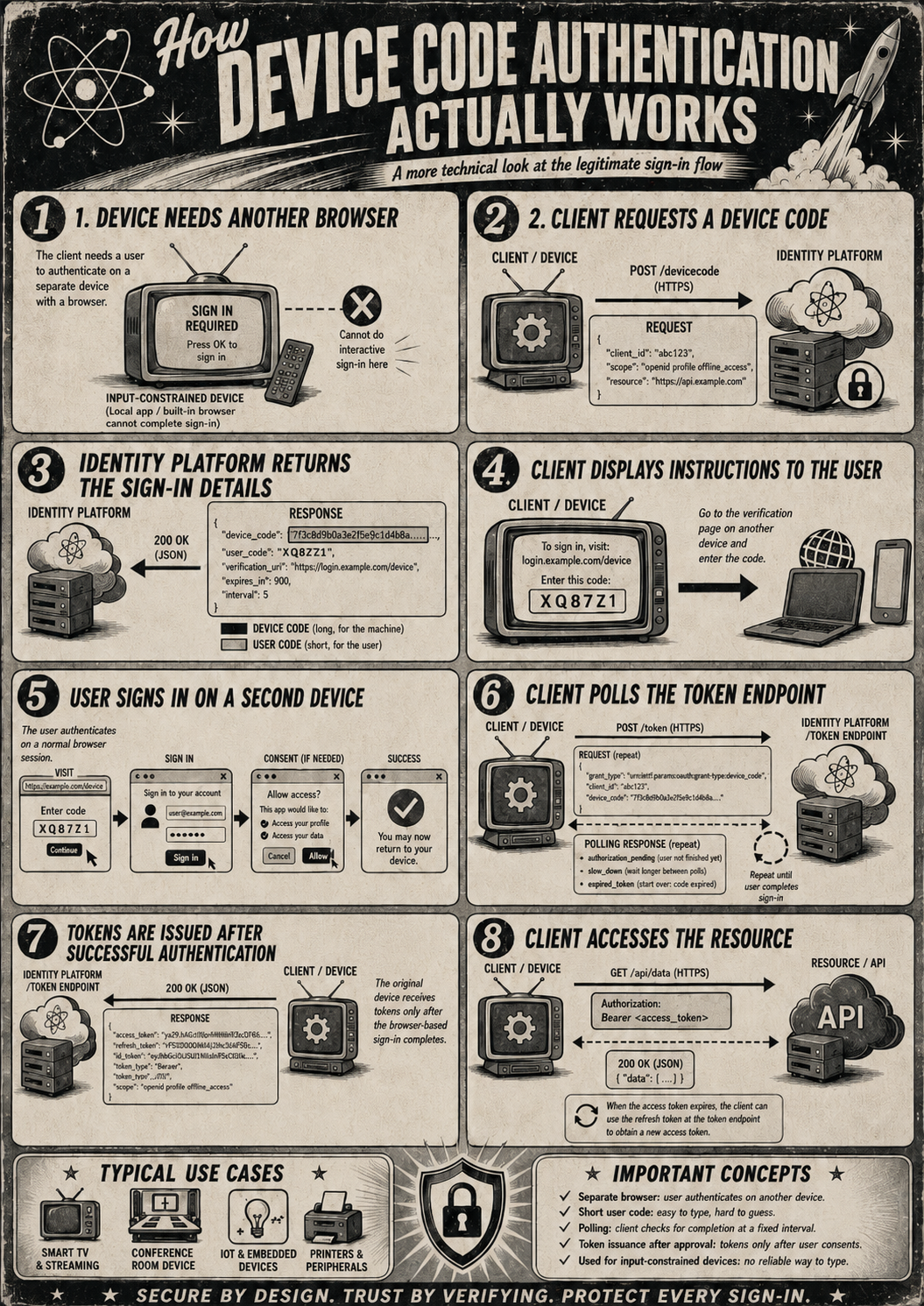
I don't use Netflix in my business so why does it exist?
Good question! In the corporate world, there are actually plenty of use-cases for this. It may be to set up info-screens or log on to meeting room devices.
Very often it is used by technical personnel that log on to terminals on remote servers and they only have a text interface and no way of using the browser or similar to log in.
This is when the tools instead show a prompt like this instead:
❯ az login --use-device-code
To sign in, use a web browser to open the page https://login.microsoft.com/device
and enter the code DWMXA8G7B to authenticate.
Browsing to that link presents an interface to enter the code and then continue the login process.
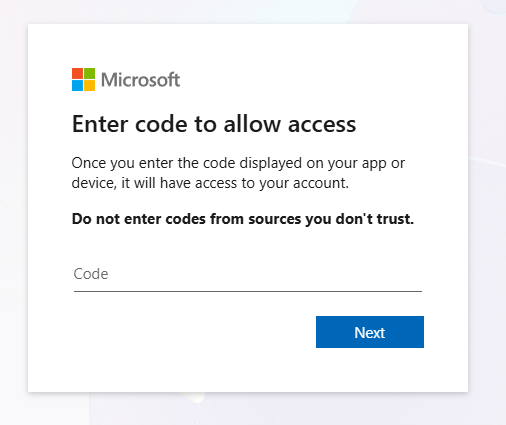
From here on, normal authentication applies. You will be asked for a password and MFA - or if you are using phishing resistant MFA it will simply ask you to log in using a passkey or FIDO2 security key.
No phishing flags are waved at this point because you went to a legitimate site, entered a legitimate code and logged in as you always do. Because it is a legitimate site, phishing resistant MFA will not block it as it recognises the site.
The client that requested the login in the first place and initiated the device code flow, sits quietly and asks the login service over and over again "have they logged in yet?".
Once you have logged in successfully, the login service responds to the client "why, yes, they have. And here is your precious access token that you may use to access the system as the user who logged in".
An access token is like the key to your house - as long as you have it in your pocket, you can open the door at home without any other requirement to prove who you are. And just like the key to your house, if someone else plucks it from your pantaloons they can open the door just like you could.
What is Device Code Phishing?
First off, this is not a new technique but it seems to be becoming quite popular these days. If I were to guess, its because of businesses finally starting to roll out phishing resistant MFA which kills so many other phishing techniques and as mentioned above, this technique works even if you have this PRMFA in place.
That's not to say phishing resistant MFA is broken! It is still the gold standard and will protect against most phishing attacks - it just doesn't help in this particular case (which is why its called "phishing resistant" instead of "phishing safe").
With that in mind, how does one use this to go phishing?
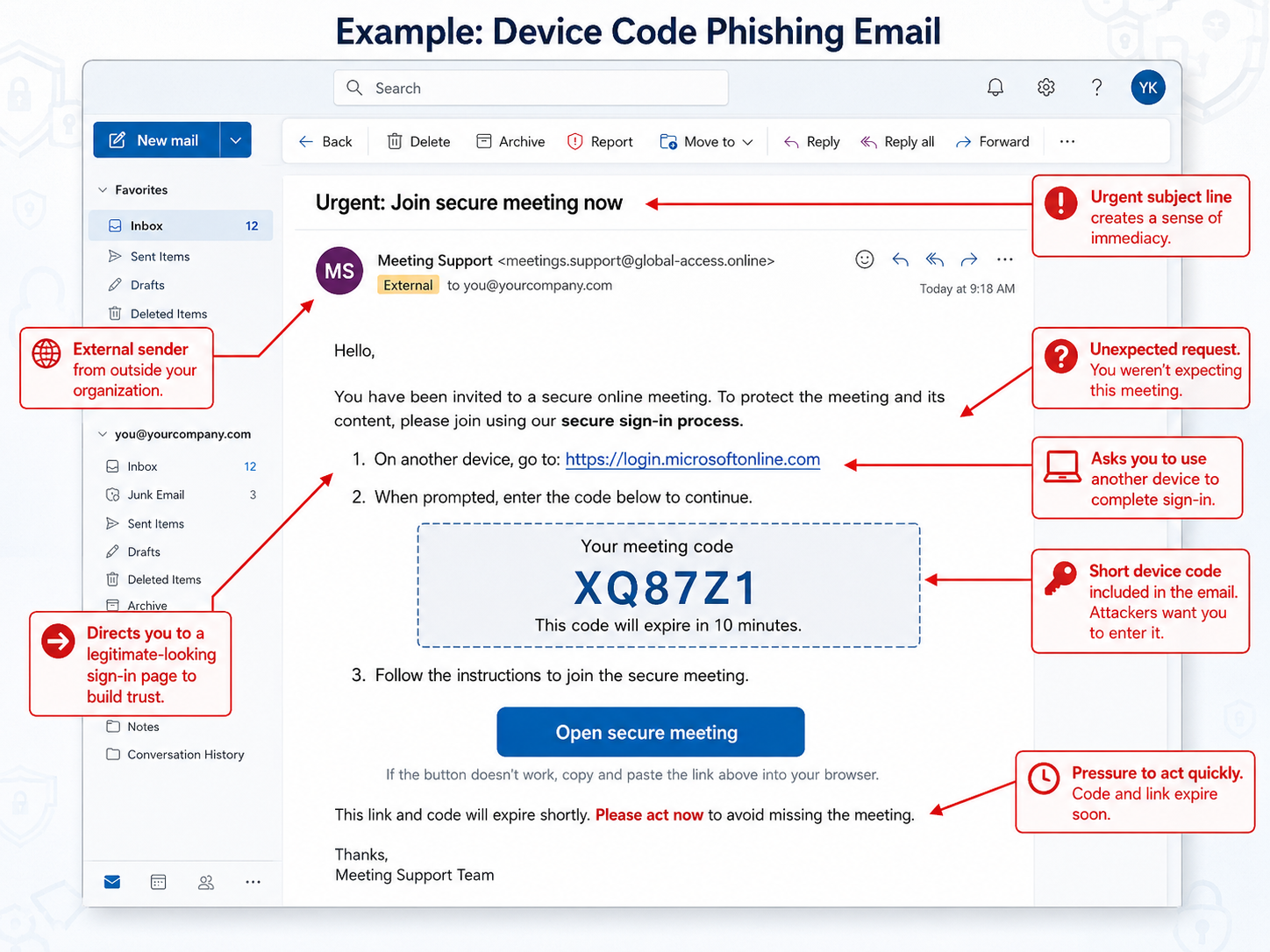
Once an attacker has initiated the device code flow and acquired a code - remember: this is completely legitimate behaviour and not something that requires hacking skills - they can craft a nifty little phishy mail like the one above.
Here they rely on their ability to make use of good social engineering to make it very believable for you to open an URL and enter a code.
Since they actually show you the URL in the mail and it is a, say, Microsoft URL why wouldn't you believe it? Don't phishing emails try to hide where they are trying to send you?
You actually get to enter the URL yourself and thereby make sure its not a phishing site!
Once this email is sent, they sit patiently (well, their automated tools) and continuously polls the login service to see if you have taken the bait.
Other more dynamic campaigns will generate the device code when you ask for it as a ploy to make you feel in charge. This will ensure the short-lived code has a higher success of being used before it times out.
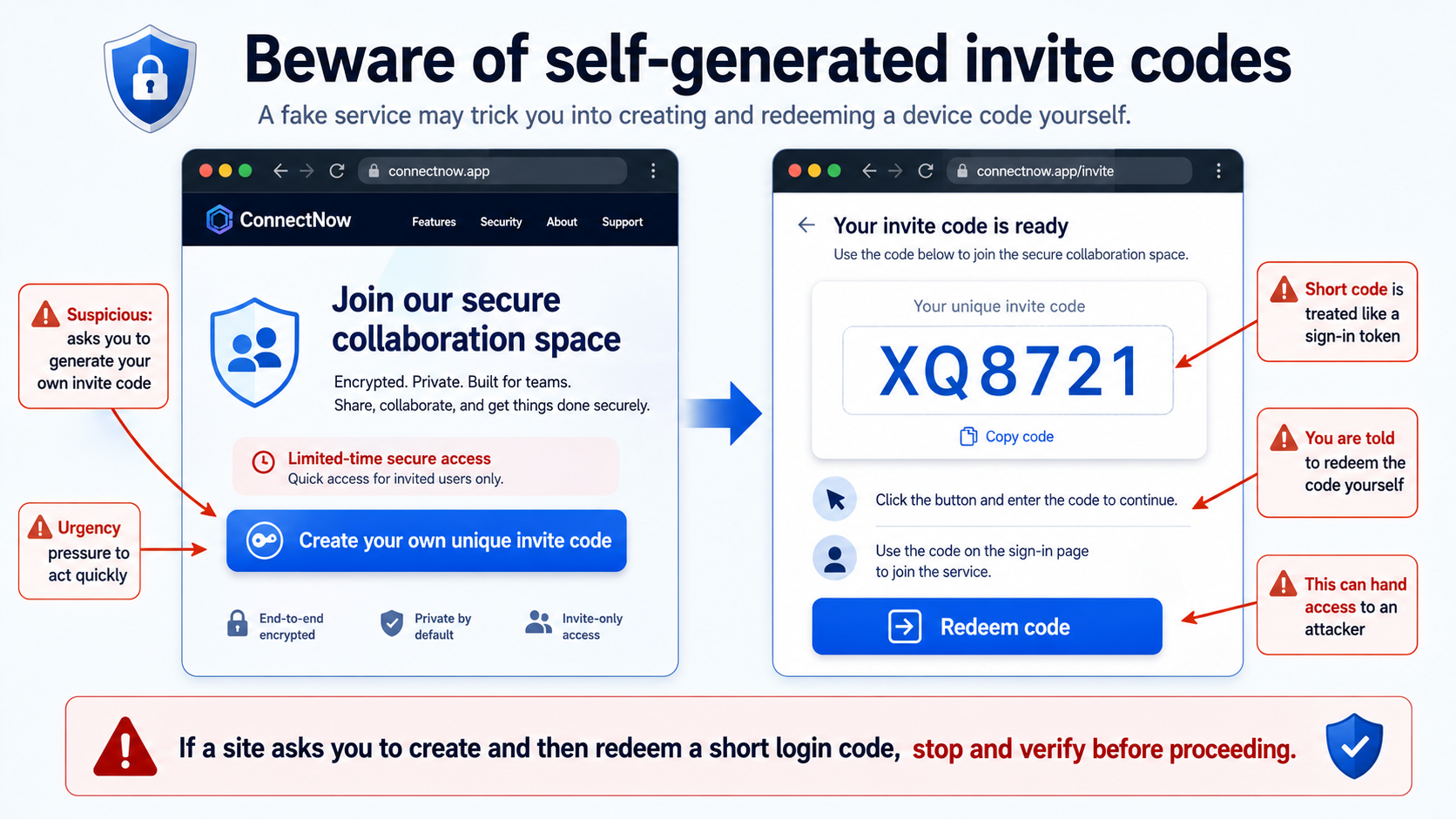
Still not malicious behaviour and completely as designed.
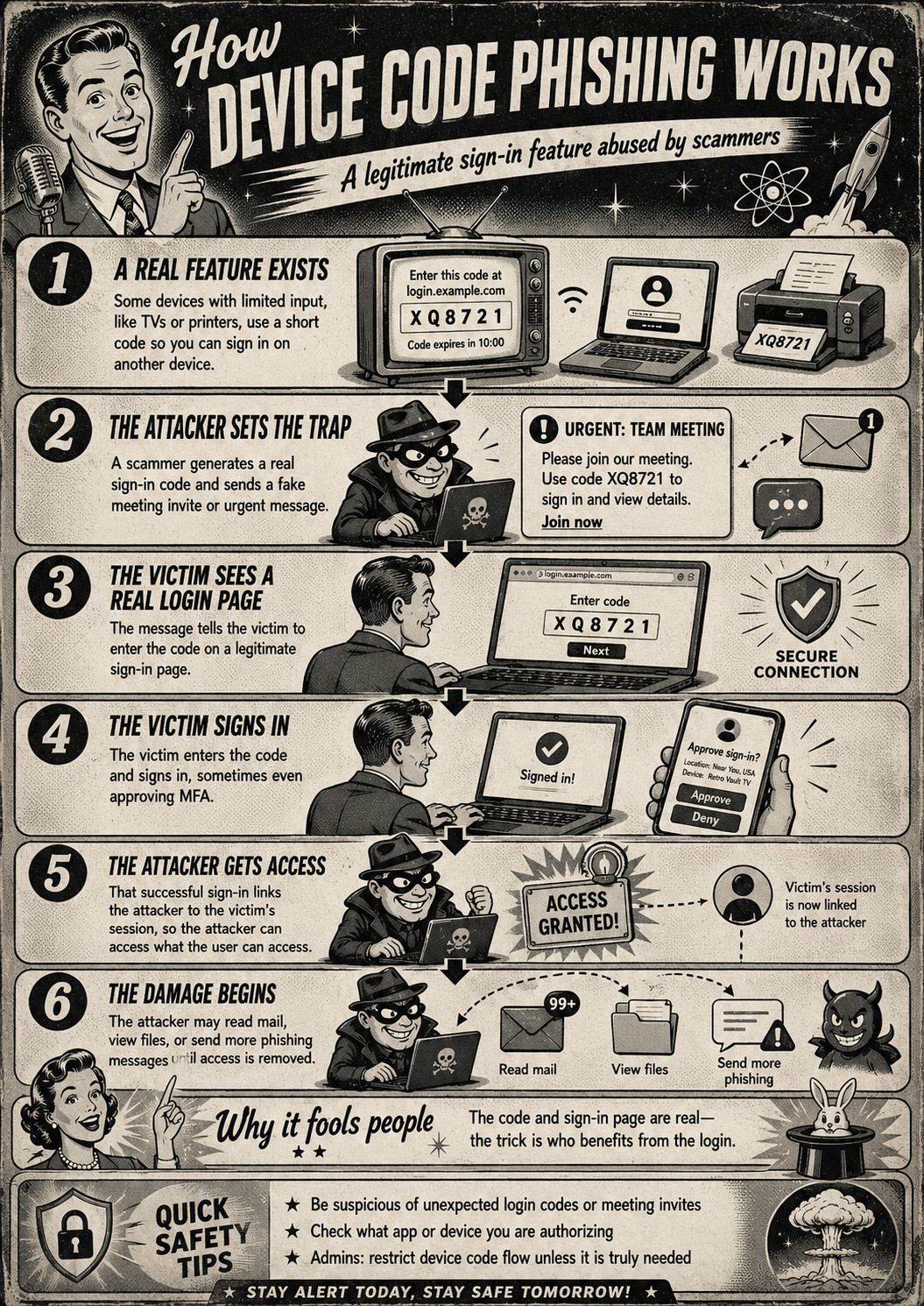
Once they have the access token, they start accessing the system you logged into as you and work as fast as they can to do what they want to do because the access token has a time limit on it (usually one hour) and now they are also subjected to detection by security teams for their weird activities.
But don't they need to know my account name?
No, the device code login only says "I need to log in, but I can't do that from here so let me enter the credentials somewhere else" so it is kind of like sending out Willy Wonka's golden tickets and however finds it can come and redeem it.
For the more technical readers
The reason why the attack is so easy to use is that requesting a device code is a normal OAuth2 operation against Microsoft’s identity platform. A legitimate client can request a code by sending a client ID and scope to the device-code endpoint. That is why the request itself does not look inherently malicious.
curl -XPOST https://login.microsoftonline.com/common/oauth2/v2.0/devicecode --data "client_id=00000006-0000-0ff1-ce00-000000000000" --data "scope=offline email openid"The CLIENT_ID identifies the application requesting the token. In legitimate use, this is the app or CLI tool the user is trying to sign in to. In abuse scenarios, attackers may use their own app registration or misuse well-known public client IDs.
The response contains the device code or actually, the user_code is the field that the user will have to enter to start the device code flow then the attacker will use the device_code to poll for the authentication status and redeem the access token:
{
  "user_code": "GXXQNZYUS",
  "device_code": "<removed for brevity>",
  "verification_uri": "https://login.microsoft.com/device",
  "expires_in": 900,
  "interval": 5,
  "message": "To sign in, use a web browser to open the page https://login.microsoft.com/device and enter the code GXXQNZYES to authenticate."
}
I hope this demonstrates how creating a device code is easy and legitimate. The risk is in how it is used by shady people.
How can cyber security teams detect this?
In short: Not easily.
This is because the current signals that are surfaced during authentication does not show where the device code authentication flow was used from or even initiated from - only where the actual authentication was performed.
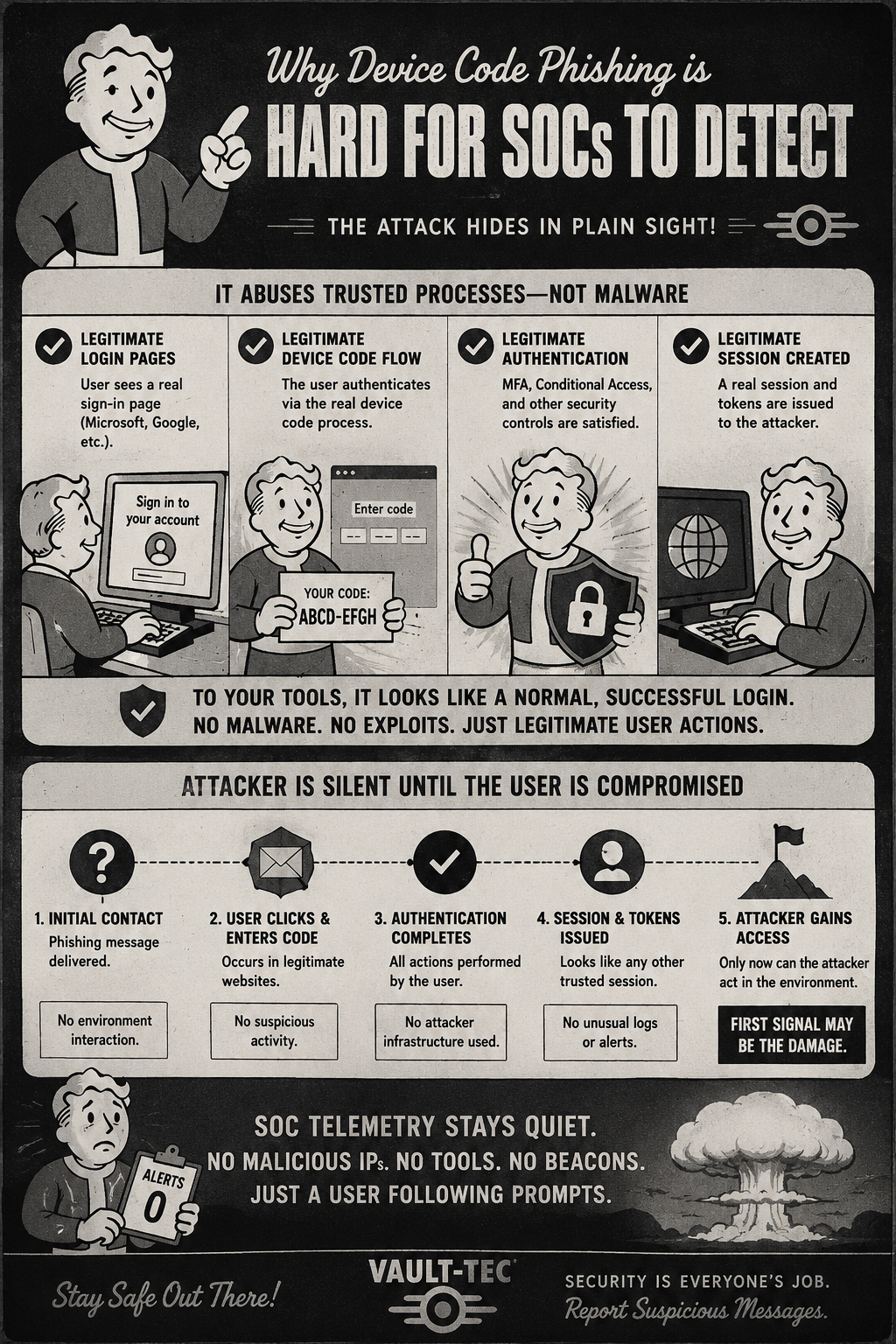
Ideally, there should be an event saying "Someone requested a device code for Application ACME from location X with IP Y etc".
Then automated detection rules could start tracking this activity and flag it - even block it automatically.
We do get logs specifying the original transfer method used device code flow, but this only shows up when the authentication is complete.
I am guessing the reason why we don't get the logs for the device code being initiated is that the process does not target a specific tenant - it can be whichever user in whatever organisation so that would mean logging a huge amount of data for each tenant (or provide insight into the global scale logs).
It is not until the code is used and the user logs in, Microsoft know where to send the logs.
And, as described, this authentication is completely legit - the user even knows it happened because they wrote in the code and performed the login.
Where detection usually can start is when the access token is then used by the attacker.
This is when security alerts spring to life or at least I hope so, if not then there is a gap in your security monitoring.
Are we doomed?
No, there are ways to disable the use of device code logins.
But it is important to understand that there are many legitimate uses of it so disabling it outright may negatively affect your business operations and activities.
The way Microsoft supports this and is also the current recommendation to prevent device code phishing, is to use Conditional Access Policies.
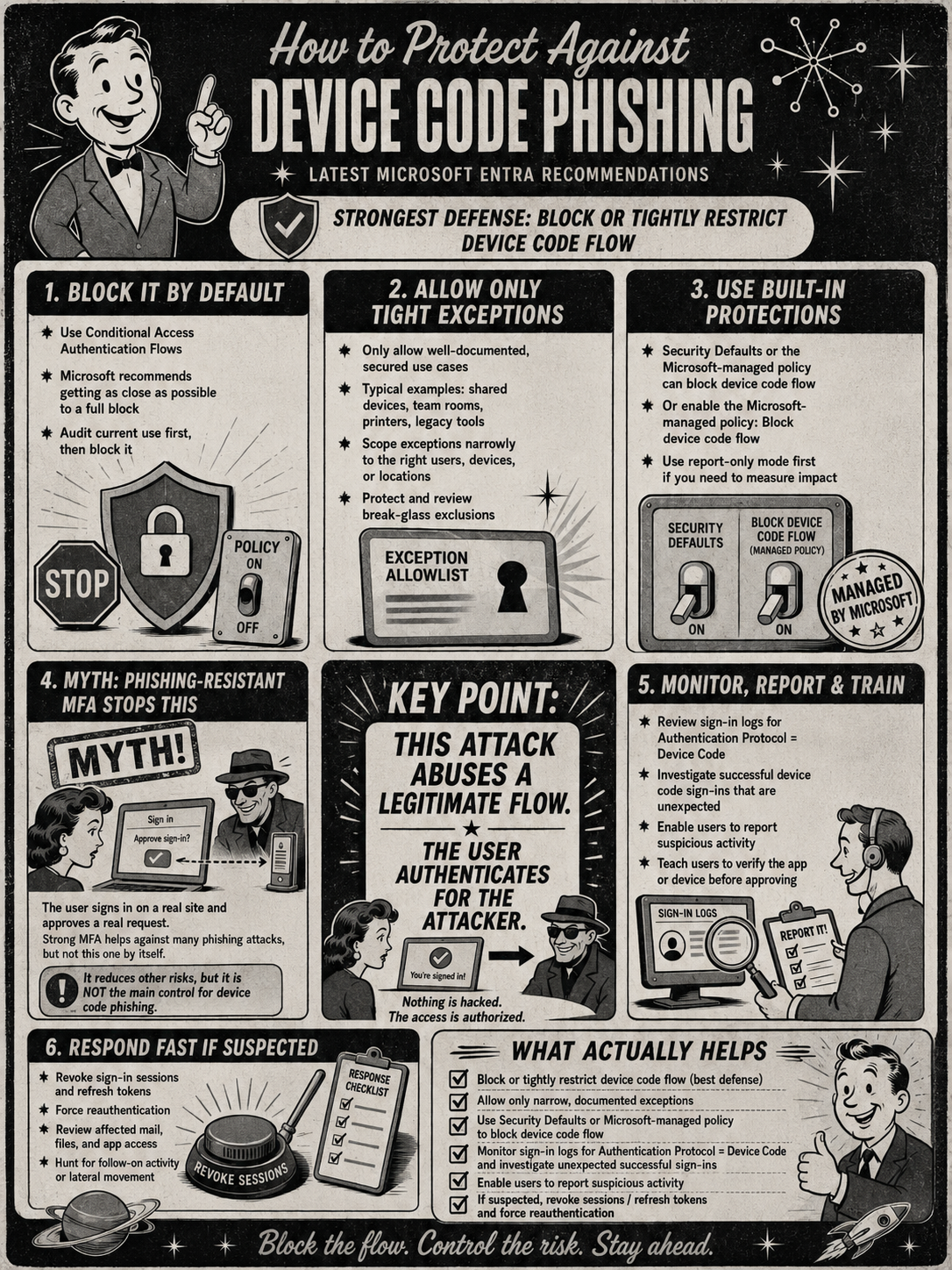
Implementing conditional access policies
You will require Security Administrator, Conditional Access Administrator or similar to do this.
Implementing conditional access policies must always be done with care.
One wrong move and you may block yourself out of your own organisation.
This is why conditional access policies are always in default Report-only mode.
Report-only mode is a feature to allow you to set up the policy but not enforce it yet, everything else works.
That means you can check all sign-ins what would have happened if the policy was in effect or On.
To see the report-only policies in action, open the sign-in logs for a user and click on an entry. You will then see the Activity details pane with a Report-only tab.
In the image below, you can see that the policy result is Report-only: Failure meaning it would have blocked the user if it had been enforced.
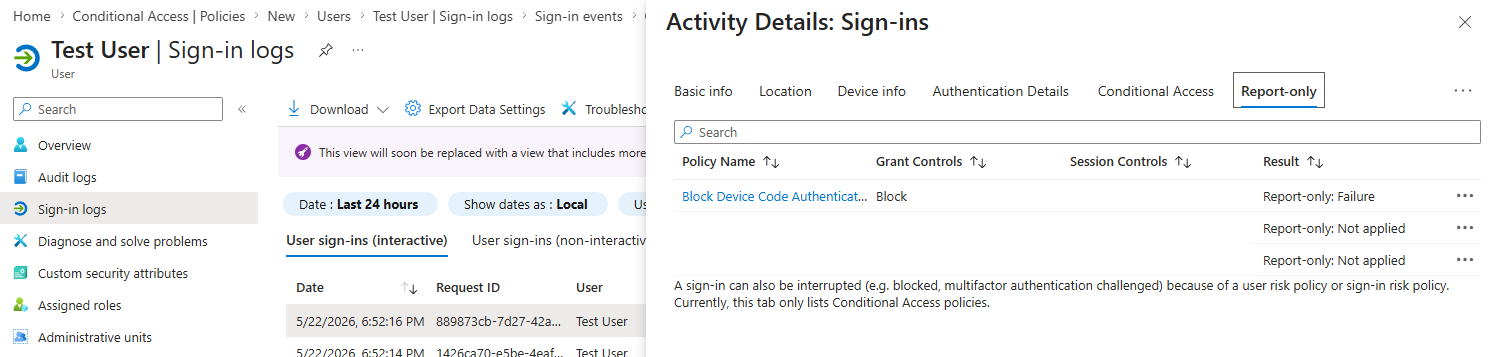
Clicking on the policy in the list will open up the details of the specific conditions that matched and what happened.
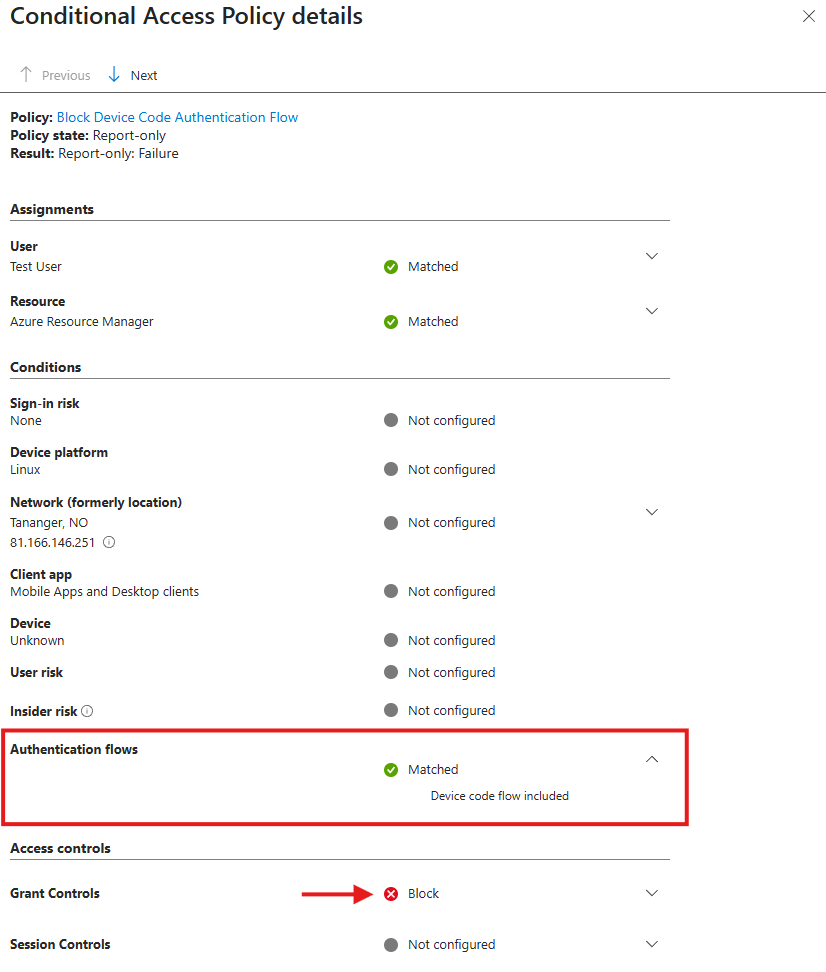
For any authentication that doesn't use device code, you would have seen this:

That's how you troubleshoot your policy.
If a user would have been blocked, check which conditions matched and adjust accordingly.
When implementing conditional access policies, it is always recommended to keep it in Report-only for at least two or three weeks depending on the activity. If you are doing this in the vacation time, you wont get much valuable data as no one (hopefully) is signing in.
Then you can regularly check the sign-in activity to see who would have been blocked by this policy and why and then tune the policy accordingly.
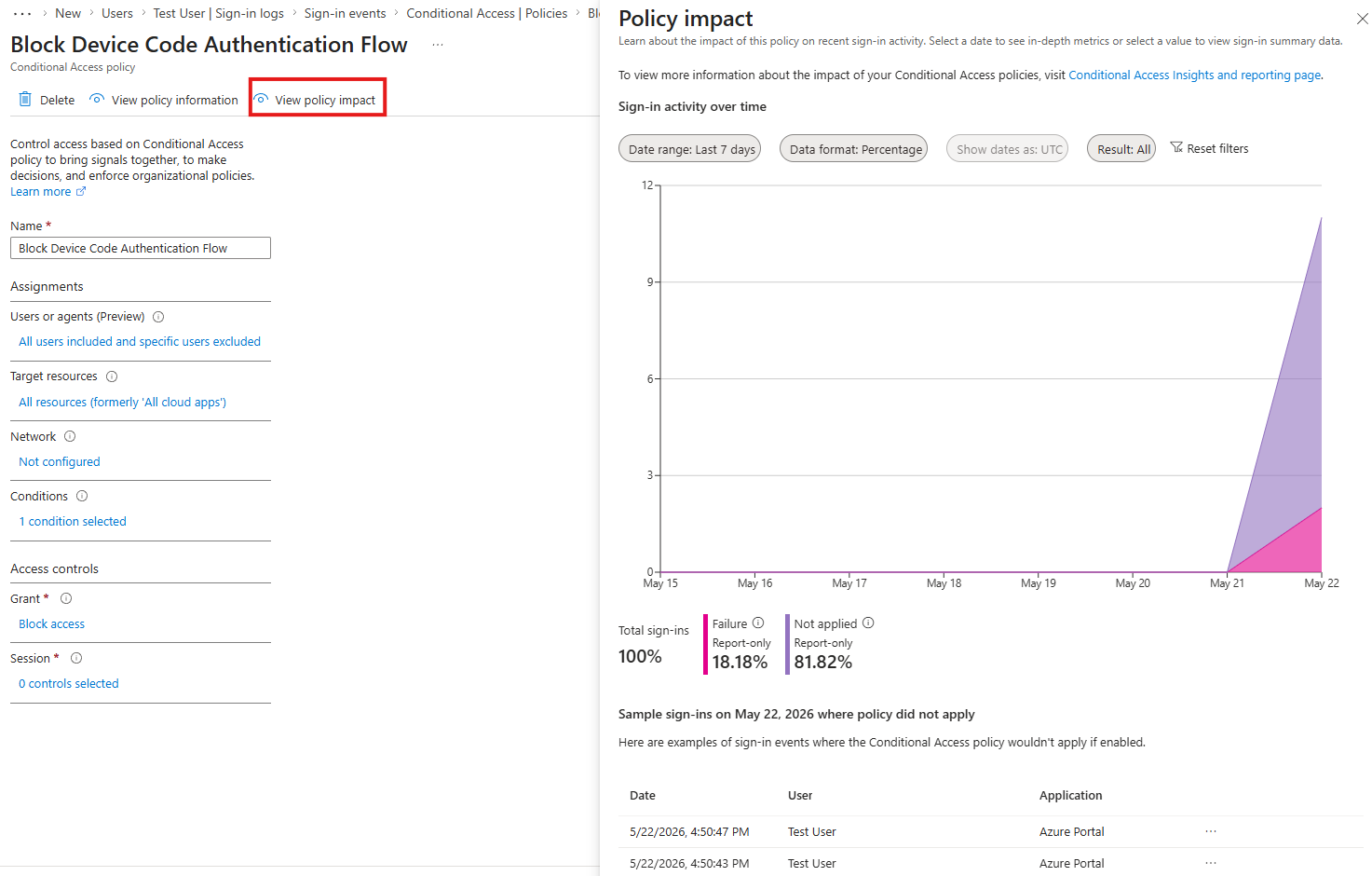
To get a larger view of how the policy would impact your organisation, you can use the View policy impact report that is available from the policy configuration page.
Creating a policy to block device code flow
To create a conditional access policy, you go to Entra admin center and find Conditional Access in the menu.
Here you click New policy from the top button row.
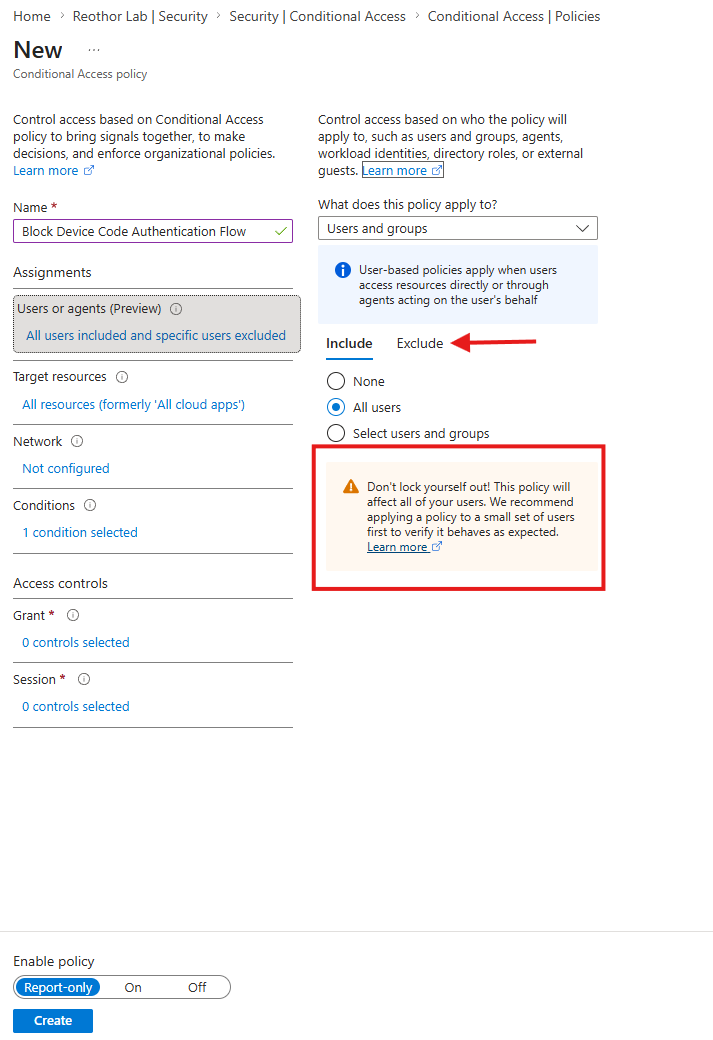
First thing we do is give it a name and define which users this policy will be applied to.
We are of course securing everyone, so we set Include: All users.
Important: In case of emergency, break the glass - don't lock yourself out. So add the break-the-glass account or your equivalent to the excluded list of users.
You always want to be able to gain access if you really need to. Would be a shame if your entire business got locked down because of a conditional access policy.
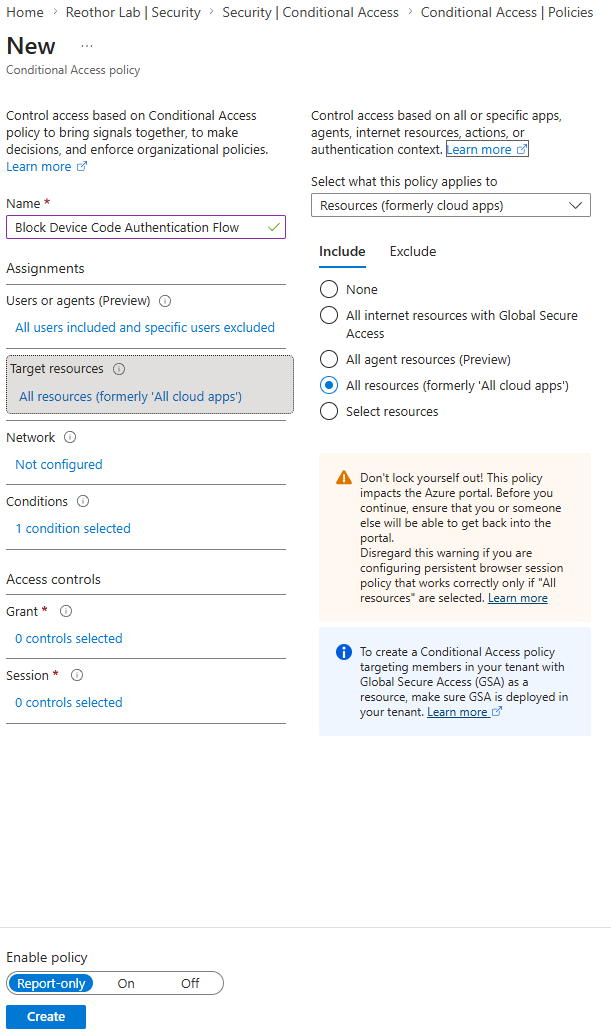
As we set who this applies to, we also need to set what it applies to.
Under Target resources we'll do All resources for simplicity sake. You can always add single exclusions in the Exclude tab if you need to.
Under Conditions we set what, well, conditions will trigger this policy to be applied.
The main concern here is to set Authentication flows to Device code flow.
This will specify that if someone tries to log on using device code flow, this policy should be applied.
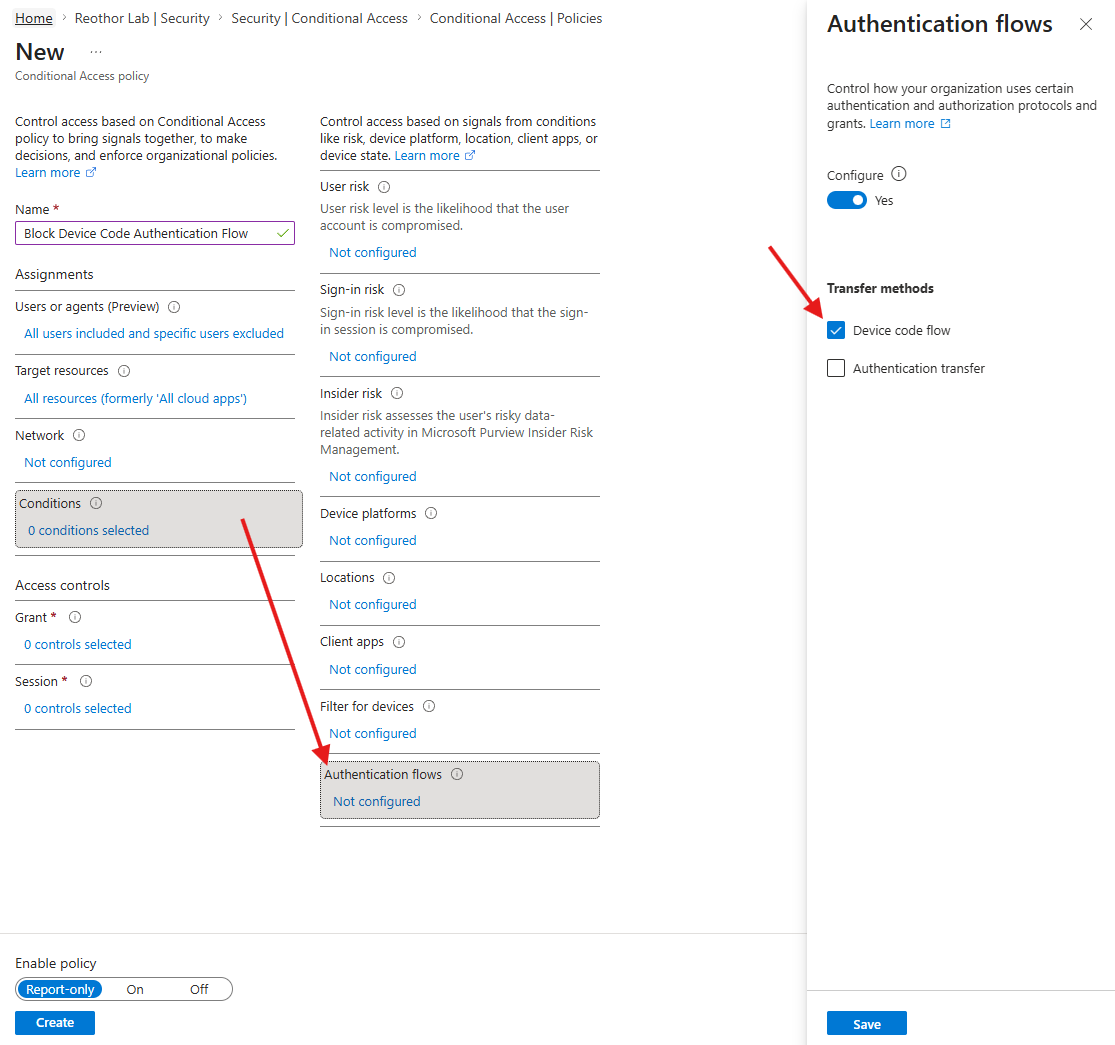
So if you want to block every single attempt at using device code no matter the cost: This is the only condition you need to set.
However, as previously discussed, you often want to allow certain use-cases.
This is where you then make use of the other conditions available.
Here you can also configure Location if you want to allow device code from certain locations only. It is then important to understand that you need to set Include: All locations and then Exclude: <your approved location>.
This is because we are going to say that if the conditions match, then the user should be Blocked. By saying Include all, but exclude this we will block all locations except the one(s) we specified to be excluded.
Note: This only allows the location from where the authentication happens (you), not where the device code is created from (the attacker).
You can even set up Filter for devices to allow (by excluding) specific devices that are really hard to use without device code login.
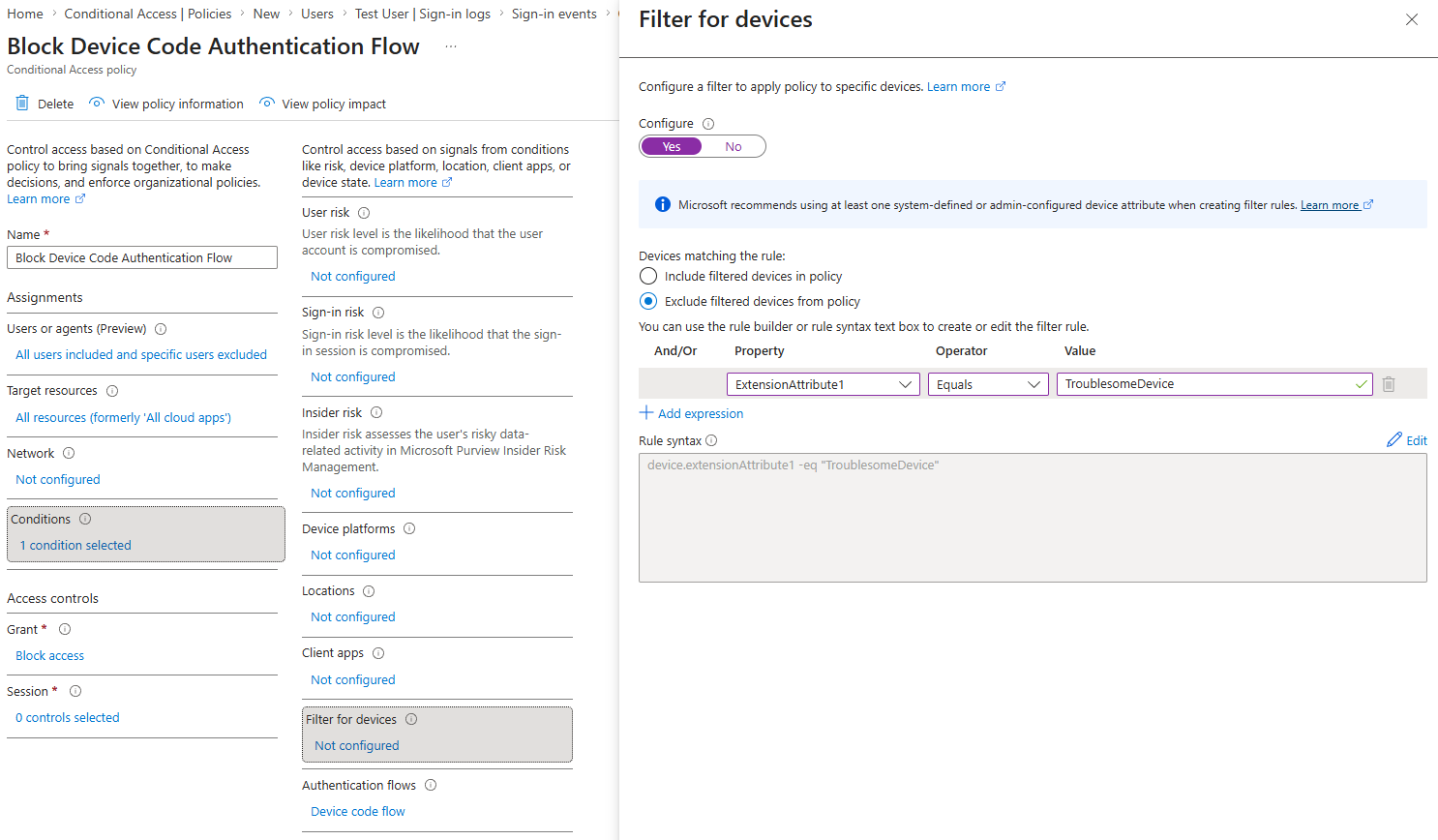
Since every business and needs are different, this is where you need to apply your requirements and go through these conditions to set it as needed for your business.
Now we set the policy to Block all authentication attempts that matches the conditions we have set up.
Open up the controls under Grant and select Block access.
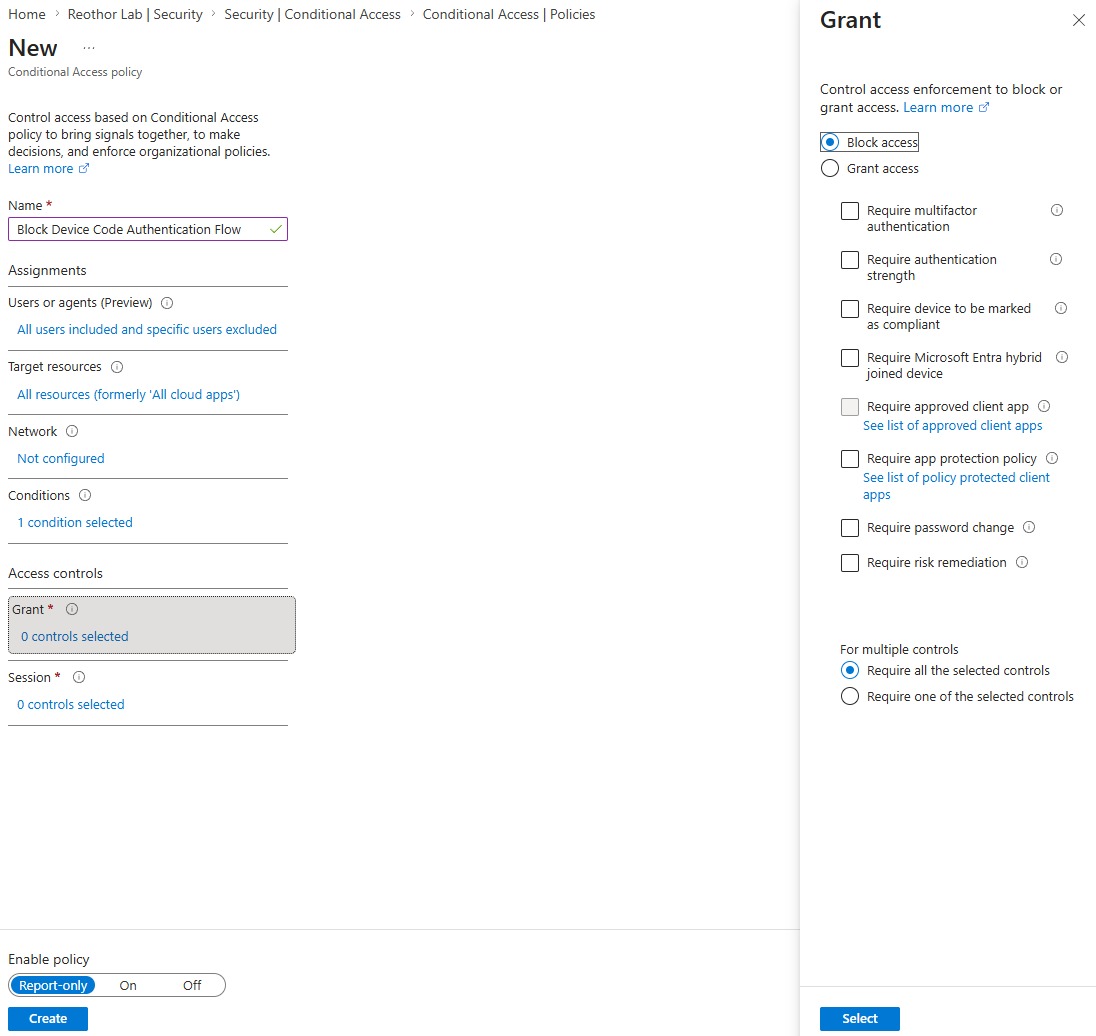
So, to sum up
Some key take-aways:
| What the user thinks | What actually happens |
|---|---|
| I am logging into Microsoft | Yes, but you are approving the session started by someone else |
| The URL is legitimate, so this is safe | The URL is real, but the code came from the attacker |
| MFA/passkey protects me | MFA proved the user is real, but then Microsoft issued the keys to the house to someone that isn't you |
| Security team would detect this happening | The attacker mainly becomes visible when using the token - not before and by then it may be too late |
While you can block device code phishing using a correctly implemented conditional access policy, many of the usual phishing awareness tips still apply.
Here's some additional ones:
- Never enter a device code unless you personally started the login from a device you physically control.
- A real Microsoft login page does not guarantee the request is safe.
- If an email, Teams message, PDF, or website tells you to enter a device code, stop and report it.